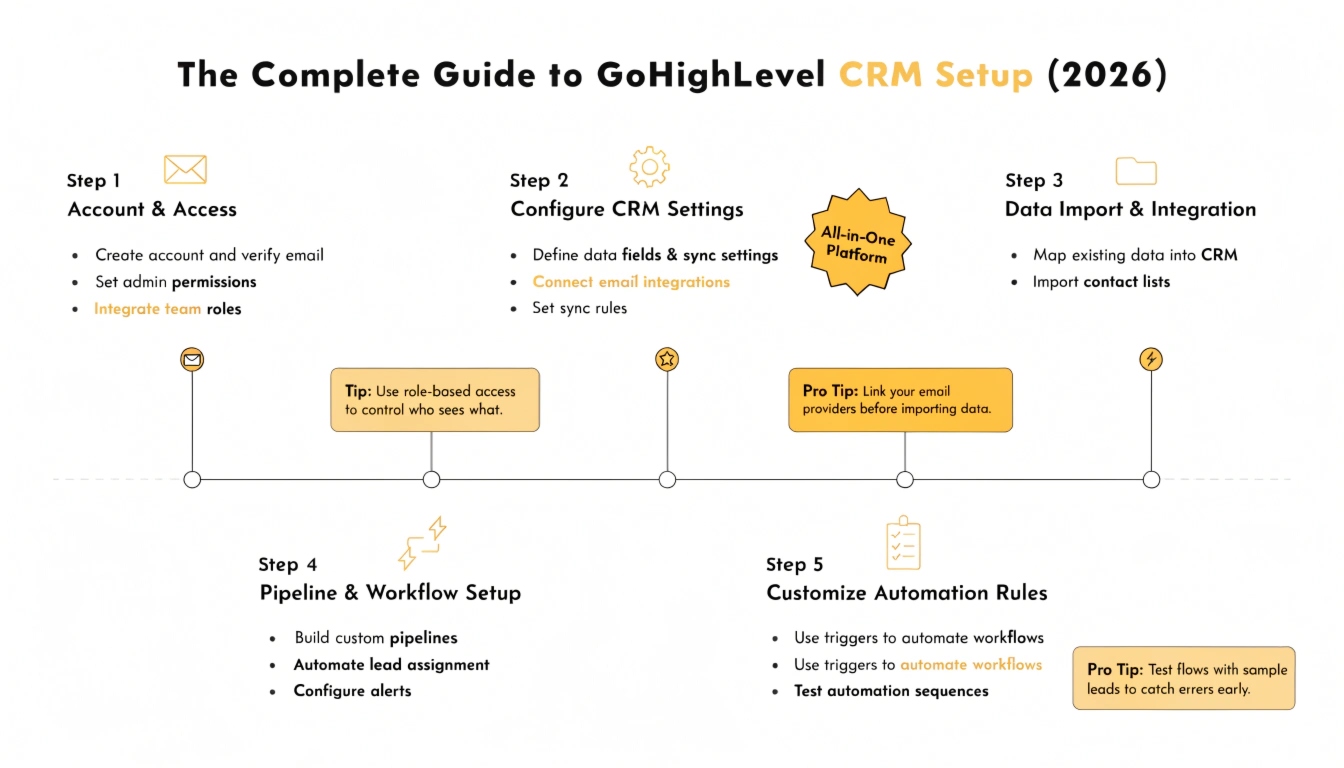
The Complete Guide to GoHighLevel CRM Setup (2026)
Managing customer relationships should not feel like a full-time job. Most businesses struggle because their client data is scattered across three spreadsheets, an outdated email tool, and a separate invoicing app. This creates massive data silos and leaks revenue every single day.
GoHighLevel solves this problem by acting as a single, centralized nervous system for your entire operations. By consolidating your customer relationship management (CRM) into one dashboard, you eliminate software bloat and build a predictable engine for business growth. This 3,000-word guide is your ultimate operational blueprint to configuring a highly optimized GoHighLevel CRM environment from scratch.
What is GoHighLevel CRM Setup?
GoHighLevel CRM setup is the process of configuring the platform’s core data structures—including custom fields, sales pipelines, contacts, and communication gateways—to match your business model. Proper configuration ensures that marketing leads flow instantly into active sales conversations without manual data entry. It provides a clean dashboard for tracking lead values, team performance, and customer lifetime value.
Read this: The Ultimate Guide: GoHighLevel for Marketing Agencies (2026)
Navigating the Sub-Account Architecture
Before moving any data, you must understand how GoHighLevel organizes data. The platform uses a two-tier system built around the Agency View and the Sub-Account View.
The Agency View serves as the administrative umbrella. If you run a white-label software business or a marketing firm, this is where you control global billing, manage your agency team, and build master snapshots.
The Sub-Account View is where the daily operations happen. Every client or individual business unit gets its own isolated sub-account. This keeps databases completely separate. It ensures that contacts, pipelines, and phone lines from one business never mix with another.
To begin your setup, log into your agency dashboard, navigate to Sub-Accounts, and click Create Sub-Account. You can select a blank template or choose an industry-specific snapshot to accelerate your baseline deployment.
Configuring Essential Business Settings
Once your sub-account is provisioned, you must establish your foundational business settings. Skipping this section will cause major errors down the line with automation time zones and message delivery.
Navigate to Settings > Company Profile. Fill out your exact legal entity name, corporate address, phone number, and website URL.
Setting Localized Parameters
Scroll down to the Time Zone dropdown menu. Ensure this exactly matches the physical location of your sales team or operations. If this is incorrect, your automated appointment reminders will text clients at 3:00 AM instead of 3:00 PM.
Enabling Key System Toggles
In the same Company Profile tab, ensure you enable the following core settings:
Designing High-Converting Sales Pipelines
A sales pipeline is a visual representation of your customer journey. It allows your sales reps to see exactly where deals are getting stuck and where revenue is sitting in real time.
Navigate to Settings > Pipelines and click Create New Pipeline. Name your pipeline based on its specific function, such as “Core Services Sales 2026.”
Mapping Your Stage Logic
A perfect pipeline maps the precise actions a prospect takes. Do not overcomplicate your stages. For a standard high-ticket service or agency model, use these five clear stages:
Structuring the Contact Database
The contact record is the most important element inside GoHighLevel. Every phone call, text message, page visit, and payment history is tied directly to the individual contact profile.
Navigate to the Contacts tab in the left-hand navigation menu. This screen displays your smart lists and master database rows.
Standard Fields vs. Custom Data
Out of the box, GoHighLevel provides standard fields like First Name, Last Name, Email, Phone, and Company Name. However, standard fields are rarely enough to run an advanced sales process.
To collect deep insights, you must build custom fields that adapt to your business requirements. In our experience building over 250 systems, proper custom field planning prevents data fragmentation and saves hours of manual review.
Read this: The Ultimate Guide: GoHighLevel for Agencies and Enterprises (2026)
Advanced Data Customization: Custom Fields & Objects
Custom fields let you store specific data points about your leads, such as their project budget, current software tools, or business roadblocks.
Navigate to Settings > Custom Fields. Click Add Field in the top right corner. GoHighLevel offers several distinct field formats:
Grouping Fields for Clean Layouts
Don’t let your contact records become a disorganized mess of text boxes. Use custom field groups to keep things structured. Create specific folders like “Lead Qualification” and “Onboarding Data” to organize your custom fields. This allows your sales reps to find vital details in under two seconds during a live call.
Integrating Communication Gateways: Twilio & Mailgun
A CRM is completely useless if it cannot communicate with your leads. You must connect your phone and email systems directly to the platform backend.
Setting Up the LC Phone System
GoHighLevel uses the LeadConnector (LC) phone system, which runs on Twilio infrastructure. Navigate to Settings > Phone Numbers. Click Add Number to search for local or toll-free area codes.
Once your number is selected, you must complete your regulatory registration. Due to strict carrier guidelines, your messages will be instantly blocked without approved registration profiles. Complete your profile with your corporate EIN and explicit opt-in forms to ensure maximum SMS delivery rates.
Connecting Your Email Sending Domain
Navigate to Settings > Email Services. GHL utilizes the LC Email gateway. Click Dedicated Domains and click Add Domain.
We highly recommend using a clean subdomain like mail.yourdomain.com instead of your root domain. GoHighLevel will provide you with specific DNS records:
Copy these records and paste them into your DNS provider (such as Cloudflare, GoDaddy, or Namecheap). Once verified, your email deliverability will skyrocket.
Connecting Inbound Lead Channels
With your infrastructure built, you must open the floodgates for lead ingestion. GoHighLevel captures leads through built-in forms, custom surveys, and chat widgets.
Building High-Converting Forms
Navigate to Sites > Form Builder and click Create Form. Drag and drop your desired fields onto the canvas.
Always put your primary custom qualification fields right into the form layout. For instance, if you require a website URL to qualify a lead, add that field directly. Once designed, click Save and embed the form directly onto your landing pages.
Deploying the Web Chat Widget
Navigate to Sites > Chat Widget. Customize the automated welcome text, avatar image, and branding colors.
Copy the native code snippet and paste it into the global footer of your primary website. When a visitor inputs their mobile number on your site, GHL instantly creates a contact record and triggers an immediate text response to their phone.
Importing Historical Contact Data Safely
If you are migrating from an old tool like HubSpot, ActiveCampaign, or a spreadsheet, you must clean your data before importing it to prevent corrupted records.
Preparing Your CSV File
Open your data in Microsoft Excel or Google Sheets. Ensure your columns have clear headers that match your GHL field names perfectly. Separate your tags into a single column separated by commas (e.g., “SaaS Prospect, East Coast, Lead2026”).
The Step-by-Step Import Process:
Setting Up Calendar & Round-Robin Scheduling
To turn traffic into revenue, you need an automated booking system. GHL replaces external scheduling tools like Calendly by building calendar access directly into your database records.
Navigate to Settings > Calendars and click Create Calendar. Select Round-Robin Scheduling if you manage a team of multiple sales reps.
Assigning Team Weight and Logic
Input your team members and link their personal Google or Outlook calendars. You can set GHL to distribute leads equally (“Optimize for Availability”) or send high-value leads to your top-performing reps (“Optimize for Equal Distribution”).
Set your availability hours, buffer times between calls, and minimum scheduling notice periods. This ensures your sales reps never look at their phones to find an appointment booked 2 minutes ago with zero prep time.
Read this: The Ultimate Guide: GoHighLevel for SaaS and Software Companies (2026)
Frequently Asked Questions (FAQ)
What is the fastest way to set up a GoHighLevel sub-account?
The fastest path is utilizing a pre-built industry snapshot. Snapshots instantly deploy baseline funnels, custom fields, pipelines, and automated workflows customized to specific industries, saving you days of manual design work.
How do I prevent duplicate contacts during bulk data imports?
Inside the advanced settings of the CSV import module, make sure to select the option to update existing records using the Email or Phone field as the unique identifier. This keeps your database clean by updating existing contacts instead of creating duplicates.
Why are my GoHighLevel SMS messages failing to send?
SMS messages fail when a sub-account lacks an approved A2P 10DLC registration profile. Modern telecom carriers filter out unverified business numbers. You must submit your corporate tax ID and explicit opt-in compliance disclaimers to fix message delivery.
Can I sync my GoHighLevel calendar with an external Google Calendar?
Yes. You can configure a two-way sync between your GHL calendar system and Google or Outlook accounts. This ensures that personal events block out your professional availability automatically, completely eliminating double bookings.
What is the difference between standard fields and custom fields in GHL?
Standard fields are universal fields built into the software, such as Name and Email. Custom fields are unique data fields you create to capture specific industry metrics, like property addresses for realtors or health goals for fitness trainers.
Final Summary: Your Operational Core
Setting up your GoHighLevel CRM is not just about organizing data. It is about building a scalable foundation for your entire business. When your pipelines, communication gateways, and data fields are aligned, your team stops chasing admin work and starts closing deals. Take the time to build your core infrastructure correctly, and let automation run the rest of your operations.
Ready to Build Your Automated CRM Infrastructure?
Don’t waste days trying to configure complex technical routing protocols yourself. If you want our expert team to deploy a pristine CRM setup, configure your custom fields, or handle a seamless migration from your old software, let’s connect.