
GHL Math Operations: How to Build Smart ROI Calculators
Logic is not just about words; it is also about numbers. In 2026, the most successful agencies use GHL Math Operations to prove their value. Imagine sending a text to a client that says, “We just generated $4,500 in ROI for you this week,” and having that number update itself automatically.
In this guide, we will show you how to use the “Math Operation” action in GoHighLevel (GHL) to build smart, data-driven workflows.
What is the GHL Math Operation Action?
The Math Operation action is a tool inside the workflow builder. It allows you to perform basic math on your custom fields. You can add, subtract, multiply, or divide numbers and store the result instantly.
Read this: GHL Agent Studio: How to Build Your First AI Employee
Why Numbers Matter for Your Logic
The 4 Basic Operations
In 2026, GHL makes it simple to run these four types of math:
How to Build a Lead Scoring System
Let’s build a practical example. We want to find our “Hot Leads” by giving them points for their actions.
Create a Custom Field
Go to Settings > Custom Fields and create a “Number” field called Lead Score. Set the default value to 0.
Set the Trigger
Create a workflow that triggers when a lead clicks a link in your email.
Add the Math Action
The Logic Branch (If/Else)
Add an If/Else branch after the math. If the Lead Score is greater than 50, notify the sales team. If not, keep nurturing.
Real-World Use Case: The Instant Quote Calculator
Service businesses (like cleaners or painters) love this logic. You can build a survey that asks, “How many rooms do you have?”
2026 Update: Math in Forms & Surveys
In 2026, you don’t even have to wait for the workflow to run. GHL now has a “Score Editor” inside the Form Builder. This allows the math to happen while the customer is typing. This is perfect for “Quiz Funnels” where you want to show a result on the “Thank You” page immediately.
Comparing Manual Entry vs. Math Logic
| Feature | Manual Updates | GHL Math Logic |
| Accuracy | Human error is common | 100% Accurate |
| Speed | Takes hours or days | Instant (Milliseconds) |
| Visibility | Hidden in spreadsheets | Visible on the Contact CRM |
| Client Trust | Low | High (Data-backed) |
Frequently Asked Questions (FAQs)
Can I do complex math (like PEMDAS)?
In early 2026, GHL supports one operation at a time. If you need a complex formula, just use multiple “Math Operation” steps in a row.
Does this work with currency?
Yes. You can use math on “Monetary” custom fields to track revenue and profits.
Can I subtract days from a date?
Yes! The math action also works on Date Fields. You can add or subtract days to set custom follow-up deadlines or expiration dates for coupons.
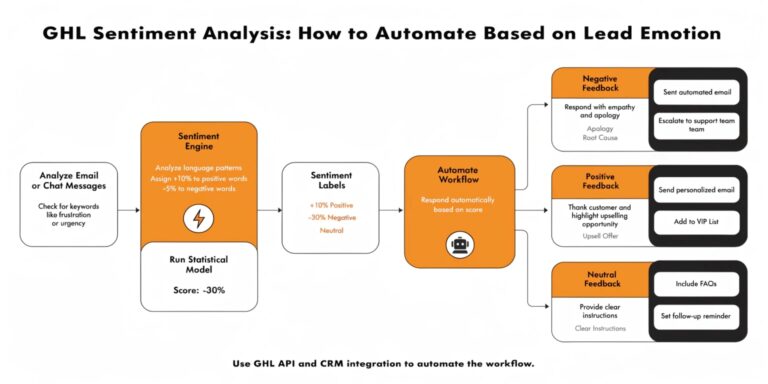
Read this: GHL Sentiment Analysis: How to Automate Based on Lead Emotion
Final Thoughts: The Data-Driven Agency
GHL Logic is your brain, but GHL Math is your “CFO.” By using these tools together, you move from being a “Marketer” to a “Business Systems Expert.”