GHL Advanced Builder: Mastering the 2026 Visual Workflow Canvas
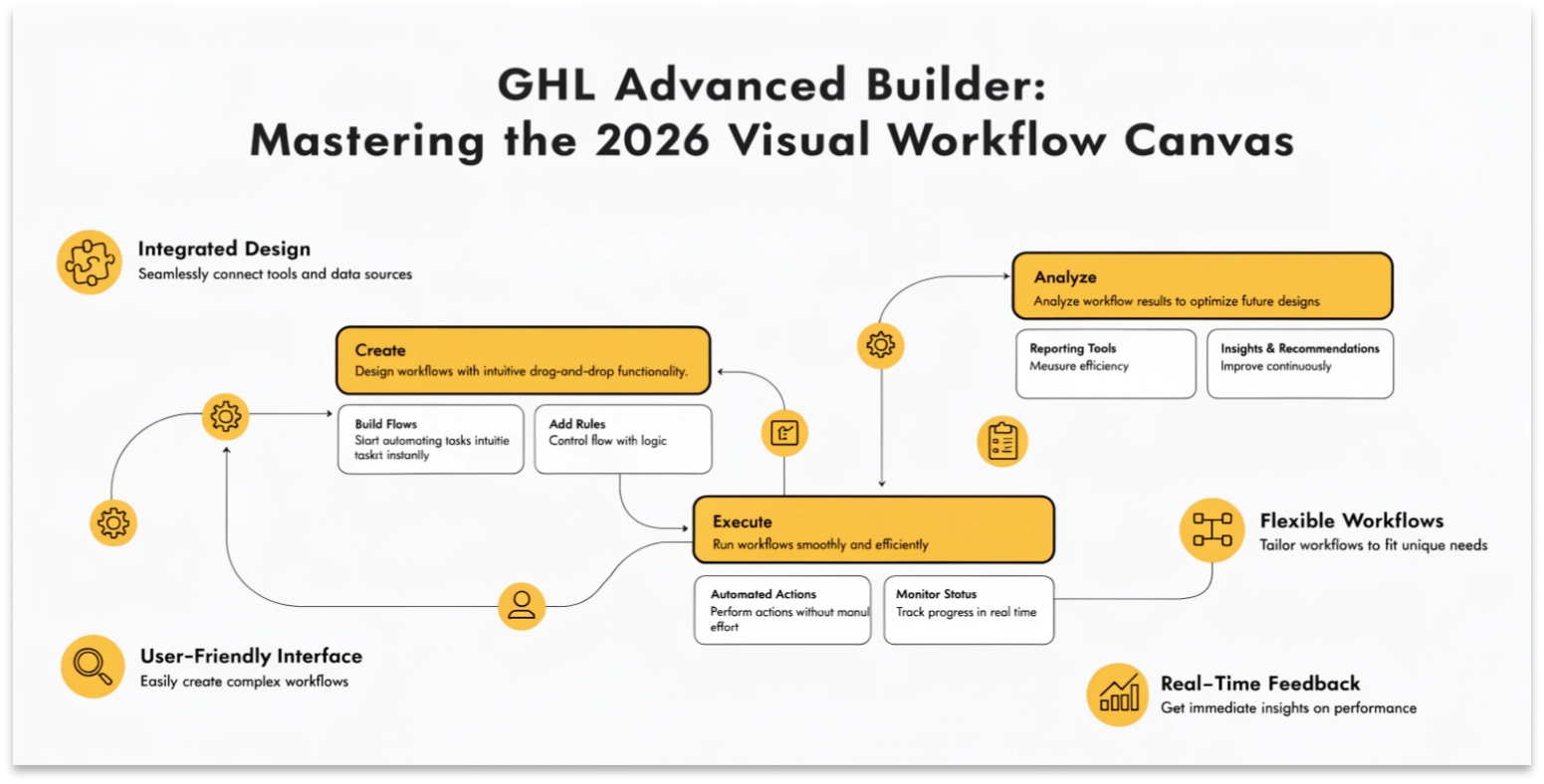
If you are still building automations using the “Standard” list view, you are missing out on the most powerful features of 2026. The GoHighLevel (GHL) Advanced Builder has transformed into a full visual canvas, allowing you to design complex, multi-path journeys that would have been impossible a year ago.
This upgrade isn’t just about a “cleaner look.” It’s about Parallel Paths, Delinked Nodes, and Live Stats that give you total control over your automation logic.
What is the Advanced Builder?
The Advanced Builder is a drag-and-drop workspace where you can see your entire customer journey at once. Think of it like a “Mind Map” that actually executes tasks.
Top 3 Visual Upgrades for 2026:
2026 Feature: “Stats Mode” 2.0
In 2026, the Stats Mode is now available in “Edit Mode.” You no longer have to switch back and forth to see how your workflow is performing.
As you move nodes around, you can see live data:
The “Pause & Play” Testing Logic
One of the most requested features of 2026 is the ability to Disable Nodes.
Previously, if you wanted to test a workflow without sending an email, you had to delete the email step. Now, you can simply hover over the node and click “Pause.”
Comparing Standard Builder vs. Advanced Canvas (2026)
| Feature | Standard Builder | Advanced Canvas (2026) |
| View | Linear List. | Visual Map (Infinite Canvas). |
| Logic Paths | Simple If/Else. | Parallel & Delinked Branches. |
| Team Collaboration | Internal naming only. | Sticky Notes & Inline Comments. |
| Bulk Editing | One-by-one. | Marquee Select & Copy/Paste Blocks. |
| Search | Manual scrolling. | Find & Replace (Alt+F). |
Frequently Asked Questions (FAQs)
Can I switch back to the Standard Builder?
Yes, but be careful. If you use “Advanced-only” features like Delinked Nodes or Trigger Go-To, you must remove them before the system will allow you to go back to the simplified list view.
Does the AI help build these?
Yes! The 2026 AI Builder now asks “clarifying questions” before it generates a workflow. If your prompt is too vague, it will ask for more context to ensure the first output is 90% ready to go.
Is there a limit to how large a canvas can be?
While the canvas is “infinite,” for SEO and performance reasons, it’s best to keep one specific “Outcome” per workflow. If your map looks like a giant spiderweb, it might be time to break it into two separate automations.
Final Thoughts: The Visual Advantage
In 2026, your workflows are your “Intellectual Property.” By mastering the Advanced Builder, you create systems that are easy to understand, easy to fix, and—most importantly—easy to scale.